
15+ Best WordPress Development Tools to Try in 2026
-
 Last Updated On
WordPress is a great CMS for creating and managing websites. But to ensure the best performance for your website and leverage WordPress’s capabilities, you need the right tools.
Many WordPress development tools are available to help with website design, code management, testing, and debugging. Some of these tools are free, and some are paid.
Now, you might be thinking which tools are actually helpful. To simplify your search, our experts have compiled a list of the top WordPress development tools they recommend. Let’s explore each tool one by one.
Our WordPress development experts have years of experience using various tools and plugins. Based on their recommendations, we have created this blog with detailed insights. But if you are in a hurry, here is a table of widely used WordPress development tools:
| Tool | Best For | Price | Ratings |
|---|---|---|---|
| InstaWP | Website Prototype & Testing, Client Demos, Plugin & Theme Development | 4.8(196) | |
| Elementor | No-Code Design , Widgets & Templates, Website Responsiveness | 4.4(390) | |
| PHPStorm | Debugging & Testing, Meta Tag Management, Code Completion | 4.6(489) | |
| CodeKit | Automated Compilation, Browser Sync & Live Reload, Image Optimization | 4.3(4) | |
| Uptime Robot | 24/7 Multi-Protocol Monitoring, Instant Alerts for Downtime, DNS Monitoring | 4.7(257) | |
| Toggl | Client and Project Segmentation, Time Reporting and Analytics, Multi-Project Handling | 4.6(1583) |
Many WordPress developers (including our team) use and recommend the following tools to create, customize, and optimize websites.
Here is a list of WordPress tools useful for various tasks.
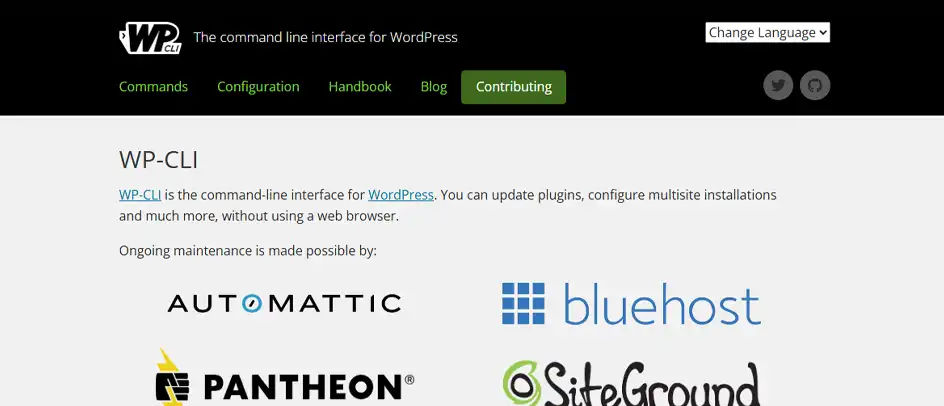
WP-CLI is a command-line interface for WordPress, helping businesses in website management. A part of the WordPress ecosystem, maintained by the community.
With WP-CLI, you can install plugins/themes, configure the settings, and manage users. An alternative to the WordPress dashboard exists. Instead of navigating through menus, you can just run commands and perform different tasks.
Key Features:
Pricing: It’s free to use.
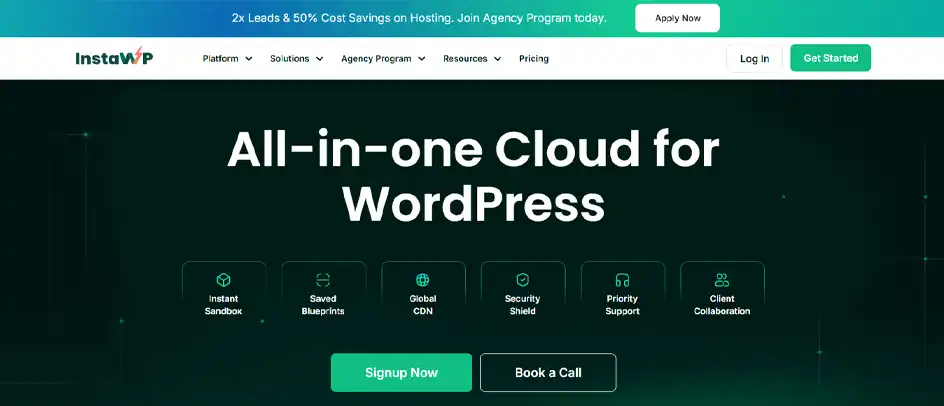
InstaWP is an innovative tool for creating and setting up WordPress staging environments in just minutes. You can easily build a staging website, test different tools, and even deploy it.
It also allows you to create custom templates with the latest WordPress version, your preferred configurations, and plugins. Additionally, you can add dummy content to pages and posts, create backups, and migrate the website.
Key Features:
Pricing: It offers a 2-day free trial. Paid plans start from $2 per month.
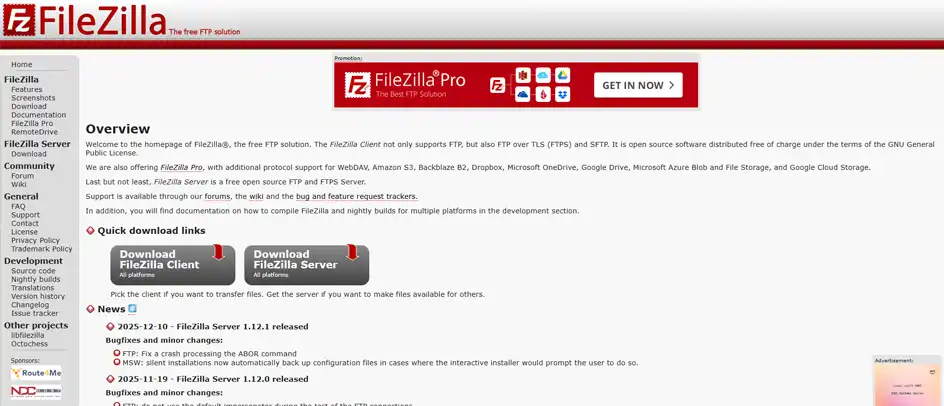
FileZilla is a renowned FTP (File Transfer Protocol) tool used by thousands of developers. You can easily upload, download, and organize any WordPress file.
It supports Windows, Mac, and Linux, so you can work on any device. With FileZilla, you can quickly transfer files and even move files from one side to another with simple drag and drop.
Key Features:
Pricing: It’s free to use.
The following tools are helpful for designing your WordPress site.
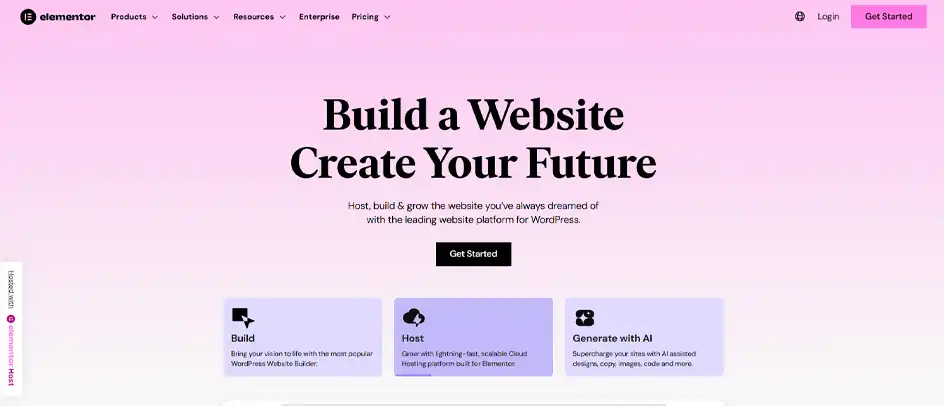
Elementor is a powerful WordPress website builder that helps your website stand out. Whether you are a professional developer or just starting out, it offers design customization features for every user.
With its drag-and-drop interface, you can easily modify your website’s design without coding. You can also create your own designs, fonts, and icons using custom CSS. To make your website more engaging, you can also add motion effects and animations. And its pre-designed templates can even help create unique, niche-based sites. For example, it has templates for news portal development and more.
Key Features:
Pricing: It offers a free plan with limited features. Paid plans start from $5 per month.

FontPair is a useful tool for font pairing. WordPress is inherently a blogging platform, so you need a way to have your blogs stand out. With FontPair, you can combine two or more fonts to create a unique and engaging look.
The tool offers a large library of fonts and pairings to try different options. You can also add the content in the editor and see how it looks visually.
Key Features:
Pricing: It’s free to use.
Theme Check is a plugin that helps you analyze your theme’s code and check if it complies with WordPress’s coding standards. You can use it during theme development to ensure your website is secure and error-free.
It scans your website’s theme code and looks for common coding mistakes. It also checks stylesheets and template files for errors. Using Theme Check will help you follow the latest coding standards and best practices.
Key Features:
Pricing: It’s free to use.
Here’s a list of the best IDE tools you can consider for WordPress development.
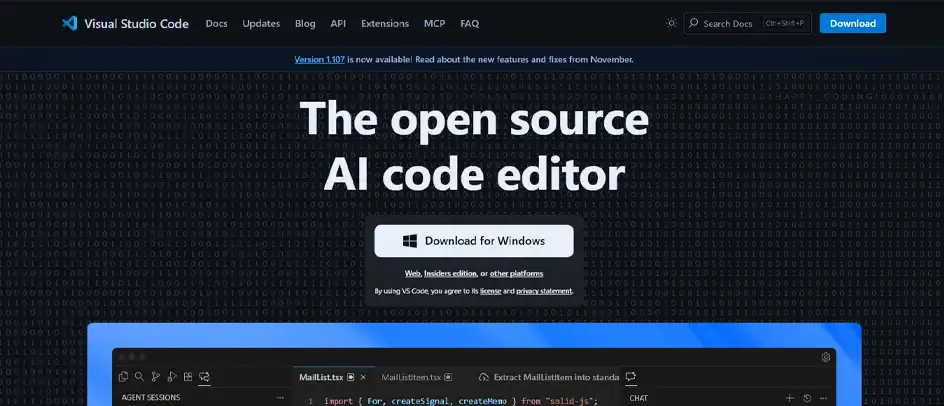
Visual Studio Code is one of the most popular code editors on the market. Although it is primarily a code editor, you can turn it into an IDE with extensions. Whether you are building a WordPress plugin or customizing a theme, VS Code helps you write efficient code.
It supports various programming languages and runs on Windows, Mac, and Linux. So, you can use it on any device for any project. It also offers various extensions to customize your workspace and enhance your coding experience.
Key Features:
Pricing: It’s free to use.
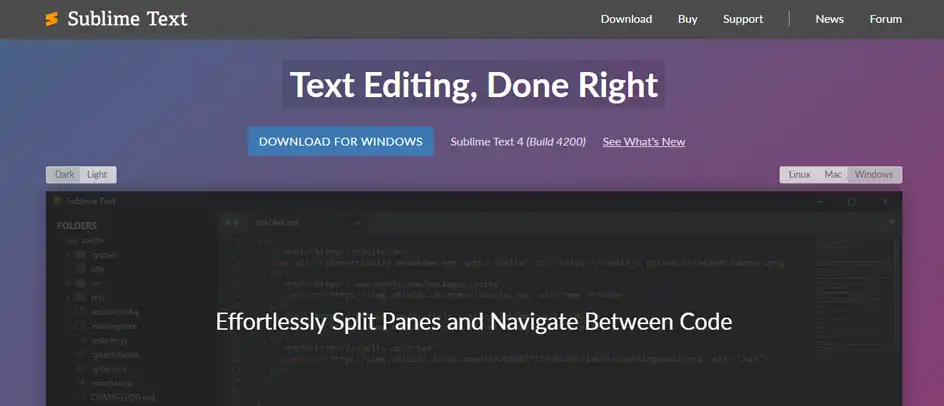
Sublime Text is essentially a code editor. Just like VS Code, you can use it as an IDE with various packages. The tool is great at handling a large number of files and projects simultaneously. You can even use it for local WordPress development.
It offers many features for code creation and management. It can also help in formatting your PHP code, so it follows WordPress coding standards. Plus, you can run Sublime Text anywhere, regardless of your device’s operating system.
Key Features:
Pricing: You can download and use it for free, but continued usage requires a license. Packages start at $99.
PHPStorm is an efficient IDE tool for WordPress. It integrates seamlessly with your WordPress website’s CMS, allowing you to easily maintain code quality.
The tool offers code navigation and refactoring features to rename, move, delete, and update inline variables. It also supports version control, remote deployment, and Docker, simplifying your development workflow.
Key Features:
Pricing: It offers a 30-day free trial. Paid plans start from $29 per month.
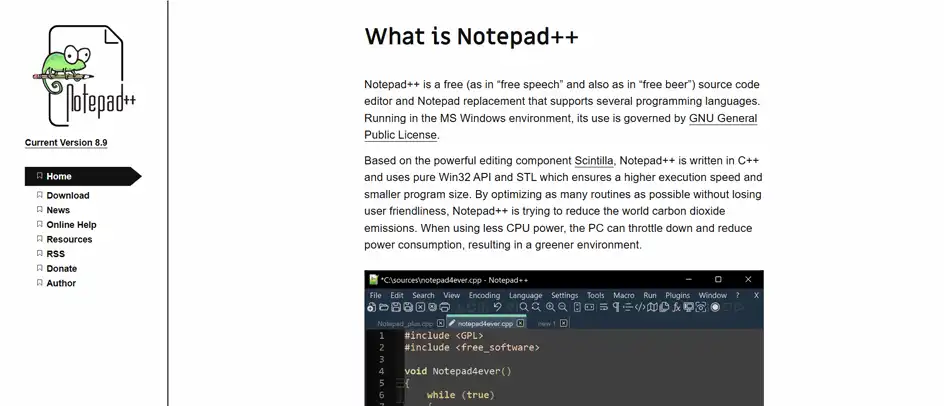
Notepad++ is a lightweight code editor that you can use for code refinement. It assists with editing code in a wide range of programming languages.
It can help you in code creation with smart auto-completion features. Being open-source, you can add more plugins to the editor to extend its functionality.
Key Features:
Pricing: It’s free to use.
Here are some useful CSS preprocessors to help you create efficient and maintainable stylesheets.
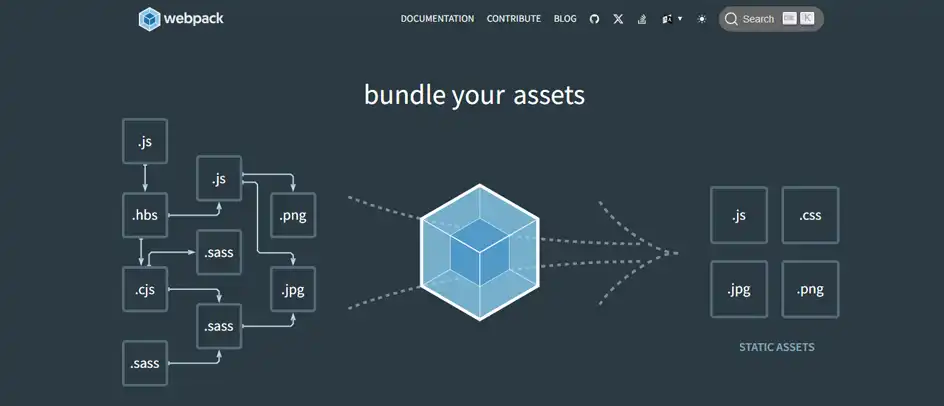
Webpack is a module bundler used for building modern WordPress themes and plugins. It helps you combine and optimize CSS, JavaScript, and other assets to boost website speed.
It generates production-ready files with fewer errors and faster load times. Webpack makes your workflow smoother, especially when working on complex themes.
Key Features:
Pricing: It’s free to use.
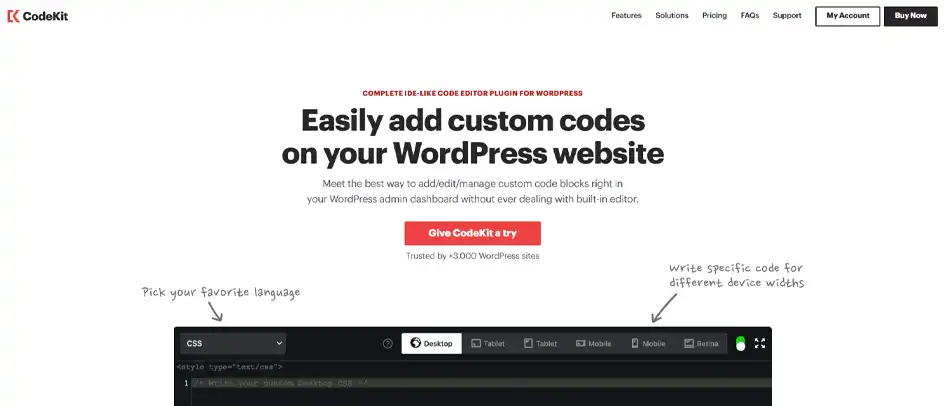
CodeKit is a WordPress plugin for speeding up theme development. With just one click, you can compile Sass, Less, Stylus, and JavaScript files. It also automatically refreshes your browser whenever you make changes.
The tool minifies scripts, optimizes images, and bundles multiple files efficiently. It’s especially helpful for WordPress developers building custom themes with modern CSS frameworks.
Key Features:
Pricing: Paid plans start at $39 per year.
Here are some helpful WordPress developer tools to test and debug your website.
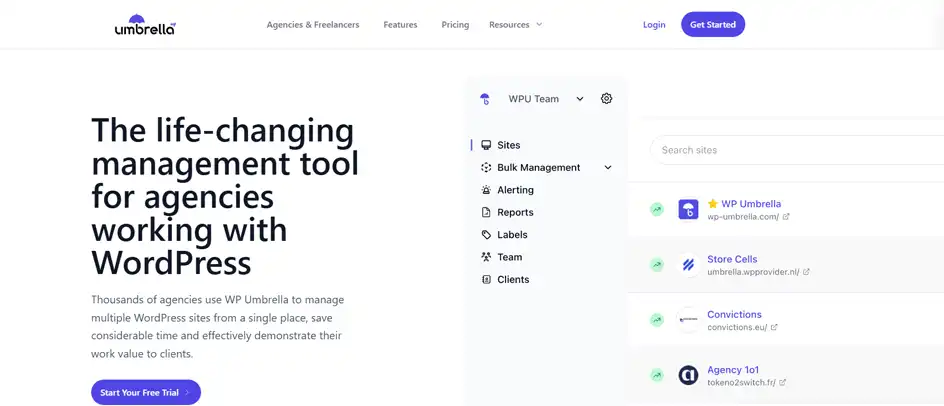
WP Umbrella is a valuable monitoring tool for WordPress websites. It tracks uptime, performance, PHP errors, and server issues in real time. You can also manage multiple projects from a single dashboard.
This tool helps you detect problems early, ensuring your websites run smoothly. It lets you easily manage updates, security checks, and maintenance tasks.
Key Features:
Pricing: Paid plans start from $1.99 per website per month.
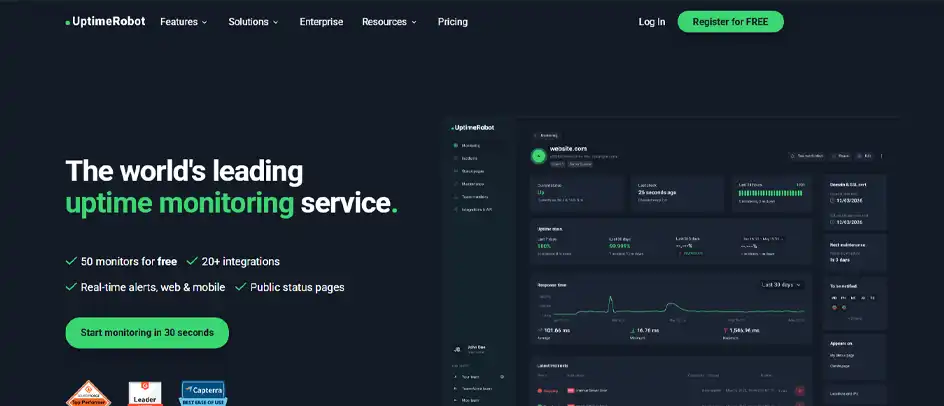
Uptime Robot monitors your WordPress site constantly and sends an alert if it goes down. This quick detection allows you to fix the issue immediately and keep your website running smoothly.
WordPress developers use it to identify hosting problems, monitor maintenance, and ensure consistent uptime. If your website experiences frequent issues, Uptime Robot also provides downtime statistics to help analyze the problem.
Key Features:
Pricing: Free plan available with limited features. Paid plans start from $7 per month.
To boost your productivity in development, try these tools.
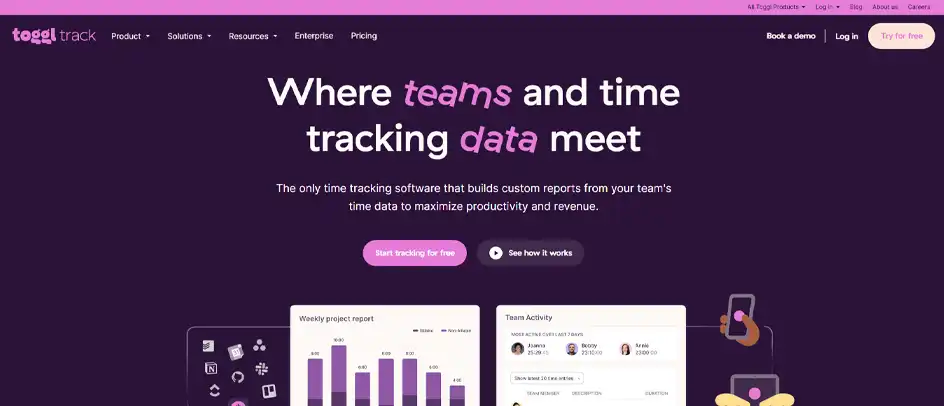
Toggl is a browser extension that provides efficient time-tracking features. Developers use it to monitor project hours, productivity, and workloads. It’s especially useful if you run an agency or work with freelancers.
Its reports help you easily understand how much time you spend on development tasks. It also integrates with over 100 tools, allowing you to include it in your current tech stack.
Key Features:
Pricing: Free plan available with limited features. Paid plans start from $10 per month.
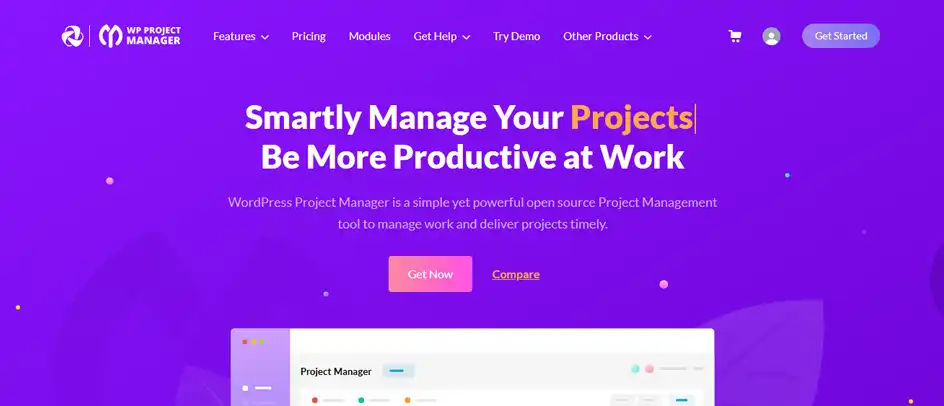
WP Project Manager is a plugin that helps with project management. You can easily plan tasks, assign roles, track progress, and collaborate with clients all from your WordPress dashboard.
It streamlines project handling without the need for external tools and offers detailed reports on various projects and tasks.
Key Features:
Pricing: Free version available. Paid plans start from $59 for an annual subscription and $257 for a lifetime license.
To get the most out of WordPress, you need to use tools. However, you can’t use every tool on this list. Analyze your needs and select the most useful tools for your project.
Here are some tips to keep in mind:
No matter whether you need help with website design, code editing, or testing, we have covered various tools for every task.
Start exploring these tools and take advantage of free trials whenever possible. All of these tools help streamline your WordPress development workflow and improve performance. They can save you time and ensure an error-free website.
If you need professional help, you can rely on our expert team. Contact us, and we will take care of your development worries!


Mar 23, 2026

Mar 23, 2026