Quick Summary
  • 25 hand-picked WordPress tools across design, coding, testing, and workflow.
  • Each tool includes real pricing, ratings, features, benefits, and drawbacks.
  • Covers everything from WP-CLI and Docker to Figma and WP Umbrella.
  • Includes a comparison table and guidance on picking tools by project need.
  • Built for developers and agencies who want a lean, effective tool stack.

Every fast, well-built WordPress site runs on a stack of development tools working behind the scenes, from writing code to testing, debugging, and optimizing every layer. The tools a developer picks shape how much time goes into building rather than fixing avoidable bugs.

This guide covers the best WordPress development tools in 2026, sorted by category: general development, design, coding, local servers, preprocessors, browser testing, debugging, and productivity.

How We Evaluated These WordPress Development Tools

Every tool went through the same testing process before earning a place here:

  • Installed each tool on live WordPress builds, not demos.
  • Ran typical tasks: theme edits, staging deploys, debugging sessions.
  • Timed setup speed, learning curve, and workflow fit.
  • Verified pricing against official vendor pages.
  • Cross-checked features against current documentation.
  • Dropped any tool that underperformed or had inadequate support.

Evaluation shows how a tool performs; the selection process decides what’s worth testing.

Which Tool Is Ideal for WordPress Development? Quick Overview

If you’re short on time, use this comparison to shortlist a few, then scroll down to learn more about them.

Tool Best For Price Ratings
WP-CLI
Terminal-based WP management
4.8
Notepad++
Lightweight Windows editing
4.6
InstaWP
Instant sandboxes and staging
$2–$45/site/month
4.5
FileZilla
FTP/SFTP transfers
4.5
Elementor
Visual page building
Pro from $59/year
4.5
Figma
UI/UX design and prototyping
Pro from $16/month
4.7
Theme Check
WordPress.org compliance
4.8
Visual Studio Code
Flexible coding
4.7
Sublime Text
Fast, minimal editing
one-time
4.5
PhpStorm
WordPress-aware PHP coding
from ~$99-$249/year
4.5
Docker
Containerized environments
Pro from $9/user/month
4.6
XAMPP
One-click local stack
4.6
Webpack
Bundling scripts and assets
4.3
CodeKit
Mac asset compiling
one-time
4.3
Prepros
Cross-platform compiling
one-time
4.3
Chrome DevTools
In-browser debugging
4.8
Lighthouse
Performance/SEO audits
4.4
Web Developer Extension
Quick frontend checks
4.5
WP Umbrella
Monitoring and maintenance
per site per month
4.9
Uptime Robot
Uptime alerts
Solo from $9/month
4.7
Query Monitor
Query and hook debugging
4.9
PHP Code Sniffer
Coding standards enforcement
4.1
Toggl Track
Client time tracking
Pro from $9/month
4.6
WP Project Manager
In-dashboard project management
Pro from ~$79/year
3.8
WP ERP
HR, CRM, accounting
Pro from $228/year
4.7

Now that we have covered the quick overview, here’s the full breakdown of each tool, organized by category.

Top WordPress Developer Tools

Day-one WordPress development tools for managing files, servers, and installs.
1. WP-CLI

WP-CLI

WP-CLI is the official command-line tool for WordPress, letting developers install plugins, update core, manage users, and run database operations from the terminal instead of clicking through wp-admin. Many hosting providers use it internally for automation, since it makes bulk changes far faster than doing them one at a time.

Key Features

  • Core, plugin, and theme management via terminal.
  • Bulk database search-and-replace.
  • Multisite and user management.
  • Custom commands via WP-CLI packages.
Benefits
  • One command replaces many admin clicks.
  • Fits into deployment scripts and CI pipelines.
  • Updates plugins or migrates content across many sites at once.
Drawbacks
  • Needs SSH access, which some hosts don’t provide.
  • Learning curve for developers used to a visual dashboard.
  • Text-only interface, no visual feedback mid-command.

Pricing: Free

Rating: 4.8/5

Relevant Read: WP-CLI can manage WordPress users from the command line, while social login simplifies how visitors access your site. Explore the best social login plugins for WordPress.
2. Notepad++

Notepad++

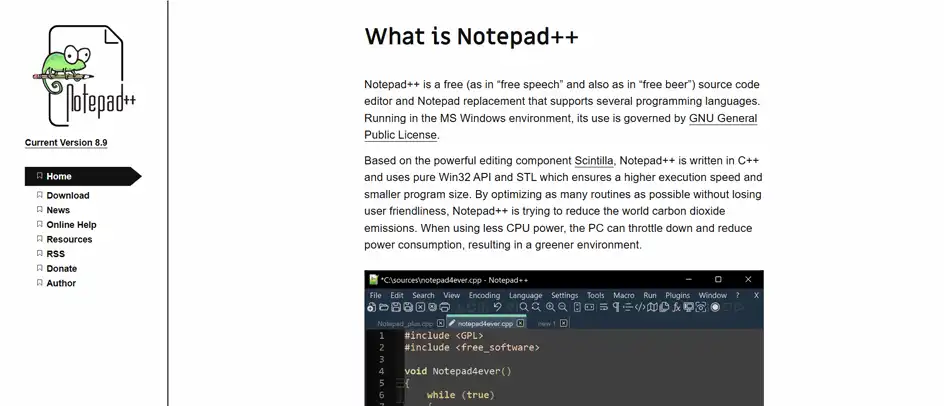
Notepad++ is a free Windows source code editor built for speed and simplicity. It supports syntax highlighting for PHP, HTML, and JavaScript, handles large files smoothly, and lets you add features like FTP sync through plugins.

Key Features

  • Syntax highlighting for PHP, HTML, and JavaScript.
  • Plugin manager for adding extra editing tools.
  • Find-and-replace using regular expressions.
  • Multiple files open at once in separate tabs.
Benefits
  • Opens instantly, even on older machines.
  • Easy for non-developers to learn quickly.
Drawbacks
  • Windows-only, with no Mac or Linux version.
  • No built-in debugging or Git tools.

Pricing: Free

Rating: 4.6/5

3. InstaWP

InstaWP

InstaWP generates temporary or long-term WordPress sandboxes on demand, with WP-CLI and SSH access included, skipping local server setup entirely. It’s built for testing plugins, client previews, and staging that converts straight into production, and can populate a site with realistic dummy content.

Key Features

  • Instant sandbox creation.
  • One-click staging-to-production conversion.
  • Built-in WP-CLI and SSH access.
  • Site templates for consistent team environments.
Benefits
  • Removes the need for local server setup.
  • Template system keeps every teammate’s test environment consistent.
  • Great for quick client demos and one-off tests.
Drawbacks
  • Free sandbox sites expire after 48 hours.
  • Free plan limits how many sandboxes stay active.
  • Costs scale up for agencies running many active sites.

Pricing: Free; $2–$45/site/month

Rating: 4.5/5
4. FileZilla

FileZilla

FileZilla is a free, cross-platform FTP and SFTP client used to move files between a local machine and a live or staging server. It’s been a WordPress staple for years because it handles large file transfers reliably without demanding much from the system it runs on.

Key Features

  • Drag-and-drop support for FTP, SFTP, and FTPS.
  • Site manager for saving multiple server connections.
  • Transfer queue with automatic resume support.
  • Directory comparison tool for spotting mismatched files.
Benefits
  • Handles large media libraries without crashing.
  • Works the same way across Windows, macOS, and Linux.
Drawbacks
  • Interface feels outdated.
  • No built-in code editor.

Pricing: Free

Rating: 4.5/5

WordPress Design Tools

This category covers page building in WordPress and designing the site’s look before any theme code is written.

5. Elementor

Elementor

Elementor is a drag-and-drop page builder plugin that lets you build WordPress pages visually, without a custom template for every layout. Its widget library covers everything from basic text blocks to WooCommerce product grids, and it now powers more than 10 million active WordPress installations.

Key Features

  • Drag-and-drop visual editor.
  • Theme Builder for headers, footers, and archive templates.
  • WooCommerce and popup builder add-ons (Pro plans).
  • Global widget and style settings.
Benefits
  • Accelerates page production for client sites.
  • Large template and widget marketplace.
Drawbacks
  • Bloated page loads without careful widget management.
  • Pro features require an ongoing annual license.

Pricing: Free; Pro from $59/year

Rating: 4.5/5

Relevant Read: Want to extend what your WordPress site can do? Explore these AI plugins for WordPress.

6. Figma

figma

Figma is a browser-based design and prototyping tool used to plan layout and structure before a site gets built in WordPress. It replaced most desktop-only design software because teams can co-edit the same file in real time, and it’s the practical successor to InVision Studio, which was discontinued in 2024.

Key Features

  • Real-time collaborative design canvas.
  • Interactive prototyping with click-through flows.
  • Reusable components and design systems.
  • Developer handoff panel showing exact CSS values.
Benefits
  • Lets several designers edit the same file at once.
  • Prototypes shareable with clients as a live link.
Drawbacks
  • Full functionality depends on a stable internet connection.
  • Advanced features need paid seats as teams grow.

Pricing: Free; from $16/full seat/month

Rating: 4.7/5
7. Theme Check

Theme Check

Theme Check is a free plugin that scans a theme’s code against official WordPress.org review guidelines. Theme developers run it before submission to catch deprecated functions and missing text domains early.

Key Features:

  • Automated scan to meet WordPress.org theme standards.
  • Flags deprecated and discouraged functions.
  • Checks for required theme tags and text domains.
  • Can also run as a WP-CLI command.
Benefits
  • Helps reduce review cycles when submitting to the theme repository.
  • Explains what’s wrong with each flagged issue.
Drawbacks
  • Only checks compliance, not design quality or performance.
  • Not useful if never submitting a theme publicly.

Pricing: Free

Rating: 4.8/5

With design finalized, code needs an editor, which brings us to the tools developers use daily.

IDEs for WordPress Coding

This section covers three common editors for WordPress-focused PHP and JavaScript work.
8. Visual Studio Code

Visual Studio Code

VS Code is a free, open-source editor from Microsoft, now the most widely used tool in web development. Its extension marketplace covers PHP intelligence, WordPress snippets, and remote development.

Key Features:

  • Massive extension marketplace.
  • Built-in Git and terminal integration.
  • IntelliSense code completion.
  • Remote development over SSH and containers.
Benefits
  • Compatible across Windows, Mac, and Linux.
  • Lightweight compared to full commercial IDEs.
Drawbacks
  • PHP intelligence depends on installing the right extensions.
  • Can slow down with too many extensions installed.

Pricing: Free

Rating: 4.7/5

9. Sublime Text

Sublime Text

Sublime Text is a lightweight code editor known for opening and searching through large codebases almost instantly. It supports WordPress development through community packages for PHP linting (automated code quality checks), snippets, and project management, while remaining leaner than full-featured IDEs.

Key Features

  • Multi-cursor and multi-select editing.
  • Command palette for fast navigation.
  • Package Control for community plugins.
  • Distraction-free and minimap view modes.
Benefits
  • Noticeably faster than most Electron-based editors.
  • Handles massive files without slowing down.
Drawbacks
  • Fewer built-in WordPress-specific features than dedicated IDEs.
  • A save-prompt reminder appears until a license is purchased.

Pricing: Free trial; ~$99 one-time

Rating: 4.5/5
10. PHPStorm

PHPStorm

PhpStorm is a commercial IDE built specifically for PHP, with WordPress-aware code completion, debugging, and refactoring tools out of the box. It understands WordPress hooks, filters, and core functions natively.

Key Features

  • WordPress-aware code completion and navigation.
  • Built-in Xdebug support for step-through debugging.
  • Database tools for querying WordPress tables directly.
  • Automated refactoring across entire codebases.
Benefits
  • Catches errors and deprecated functions while typing.
  • Native WordPress coding standards support.
Drawbacks
  • Noticeably heavier on system resources than lightweight editors.
  • Annual license cost adds up for solo developers.

Pricing: Free trial; from ~$99-$249/year

Rating: 4.6/5

Code needs somewhere to run before it reaches a live server, which is what local environments solve.

Virtual Servers for Local WordPress Development

These two tools take different approaches to the same job: running WordPress locally.
11. Docker

docker

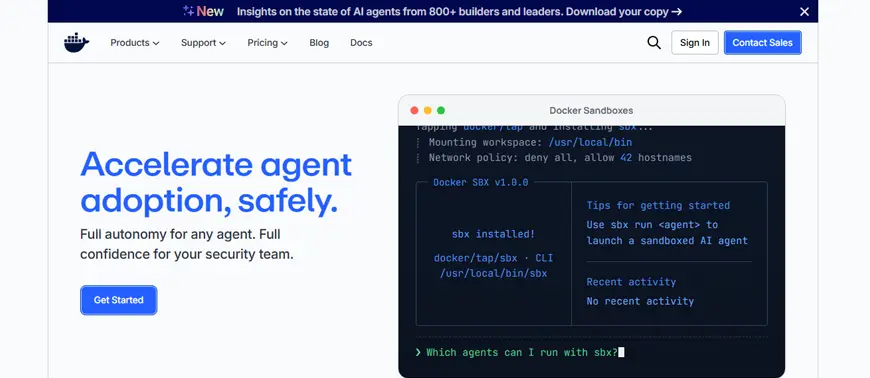
Docker packages a WordPress site, its PHP version, database, and server configuration into isolated containers that run identically on any machine. Development teams use it to make sure the environment a developer codes in matches staging and production exactly.

Key Features

  • Containerized PHP, MySQL, and web server setups.
  • Docker Compose for spinning up a full stack from one config file.
  • Version-locked environments per project.
  • Easy teardown and rebuild of local sites.
Benefits
  • Environment consistency between local, staging, and production.
  • Runs multiple PHP versions side by side.
Drawbacks
  • Steeper learning curve than one-click apps, including container networking.
  • Resource-heavy on lower-spec machines, especially on Windows.

Pricing: Free; Pro from $9/mo

Rating: 4.6/5
12. XAMPP

xampp

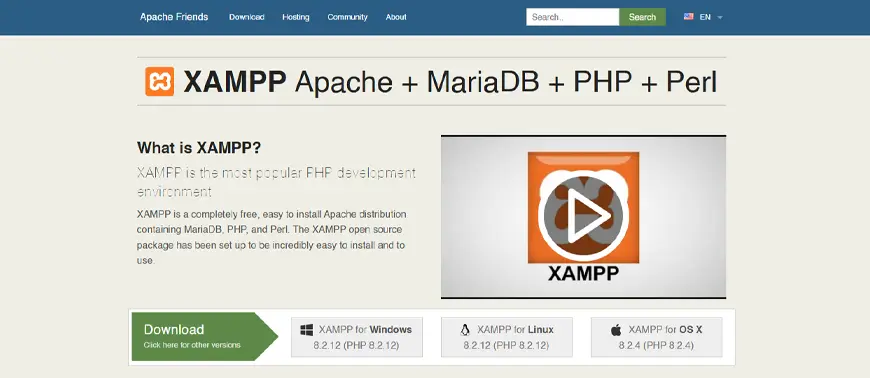
XAMPP bundles Apache, MySQL, PHP, and Perl into a single installer, giving developers a working local server in minutes. It’s been the entry point into WordPress development for years, largely because setup doesn’t require any command-line knowledge.

Key Features

  • One-click Apache, MySQL, and PHP installation.
  • phpMyAdmin included for managing databases through a browser.
  • Cross-platform support for Windows, macOS, and Linux.
  • Configurable PHP versions and extensions.
Benefits
  • Fastest way to get a beginner-friendly local server running.
  • Widely documented, so troubleshooting help is easy to find.
Drawbacks
  • Not built with production-ready security or performance.
  • Managing multiple WordPress sites with different setups can get complicated.

Pricing: Free

Rating: 4.6/5

With a local environment running, frontend assets still need to be compiled, which is where preprocessors come in.

Preprocessors for WordPress Theme Development

Tools that compile and bundle frontend assets automatically.
13. Webpack

Webpack

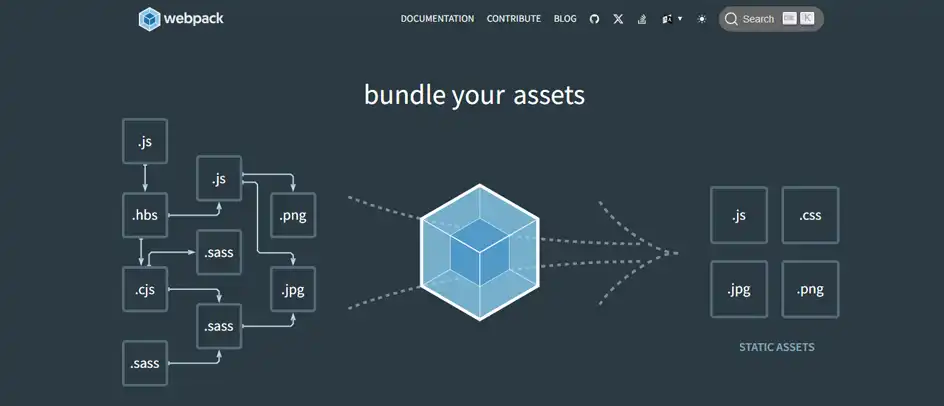
Webpack compiles JavaScript, CSS, and other assets into production-ready files. It’s the bundler behind WordPress’s own block editor tooling, which makes it the natural choice for custom block development and theme builds that use modern JavaScript.

Key Features

  • Module bundling for JavaScript, CSS, and images.
  • Code splitting for faster page loads.
  • Hot module replacement for instant browser updates.
  • Deep plugin and loader ecosystem.
Benefits
  • Matches the tooling WordPress core uses for blocks.
  • Highly configurable for complex development pipelines.
Drawbacks
  • Configuration files can get complicated fast for larger projects.
  • Steeper learning curve compared to simpler compiling tools.

Pricing: Free

Rating: 4.3/5

14. CodeKit

CodeKit

CodeKit is a macOS app that compiles Sass, LESS, and other preprocessed languages, then automatically minifies files and refreshes the browser on save. It’s built for developers who want compiling and live reload working immediately.

Key Features:

  • Automatic Sass, LESS, and Stylus compiling.
  • Built-in live browser reload.
  • JavaScript and CSS minification.
  • Image optimization on save.
Benefits
  • Zero-configuration setup for most projects.
  • Watches project files automatically; nothing to re-run manually.
Drawbacks
  • macOS-only, with no Windows or Linux versions.
  • Less flexible than script-based bundlers.

Pricing: From $39 one-time

Rating: 4.3/5
15. Prepros

prepros

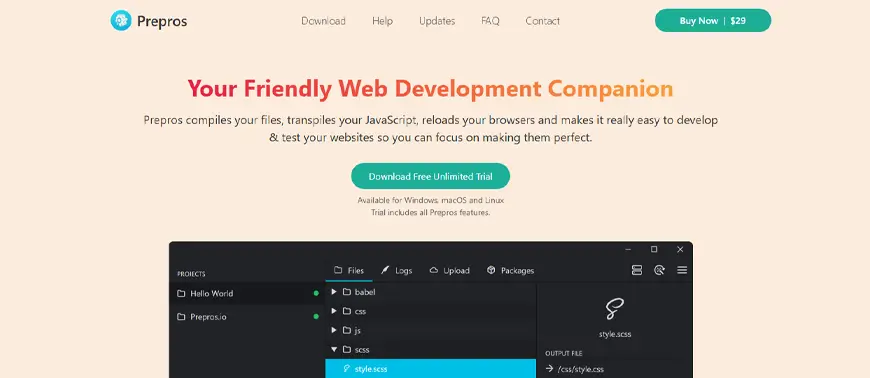
Prepros compiles Sass, LESS, and Stylus with live browser refresh, offering CodeKit-style convenience across Windows, macOS, and Linux. It fits teams that need CodeKit-style convenience without being locked into a single operating system.

Key Features:

  • Sass, LESS, and Stylus compiling.
  • Live reload across connected browsers and devices.
  • Built-in file minification and optimization.
  • Custom build steps for tools outside its native list.
Benefits
  • Cross-platform, unlike most Mac-only compiling tools.
  • Straightforward interface with minimal setup time.
Drawbacks
  • Interface feels less polished than some paid competitors.
  • Advanced automation still requires editing configuration files.

Pricing: Free trial; $29 one-time

Rating: 4.3/5

Browser Plugins and Extensions for WordPress Debugging

These tools inspect and audit a live page without leaving the tab it’s running in.

16. Chrome DevTools

chrome devtools

Chrome DevTools is the debugging suite built into Google Chrome, giving developers a live view of a page’s HTML, CSS, JavaScript console, and network requests. It’s best for fixing issues when a layout breaks, a script throws an error, or a page loads slower than expected.

Key Features:

  • Element inspector with live CSS editing.
  • JavaScript console and breakpoint debugging.
  • Network request monitoring and timing.
  • Mobile device emulation.
Benefits
  • Built into the browser, so there’s nothing to install.
  • Covers debugging, performance, and network issues in one panel.
Drawbacks
  • Chrome-specific behavior doesn’t always match other browsers exactly.
  • Overwhelming for developers new to browser debugging.

Pricing: Free

Rating: 4.8/5

17. Lighthouse

lighthouse

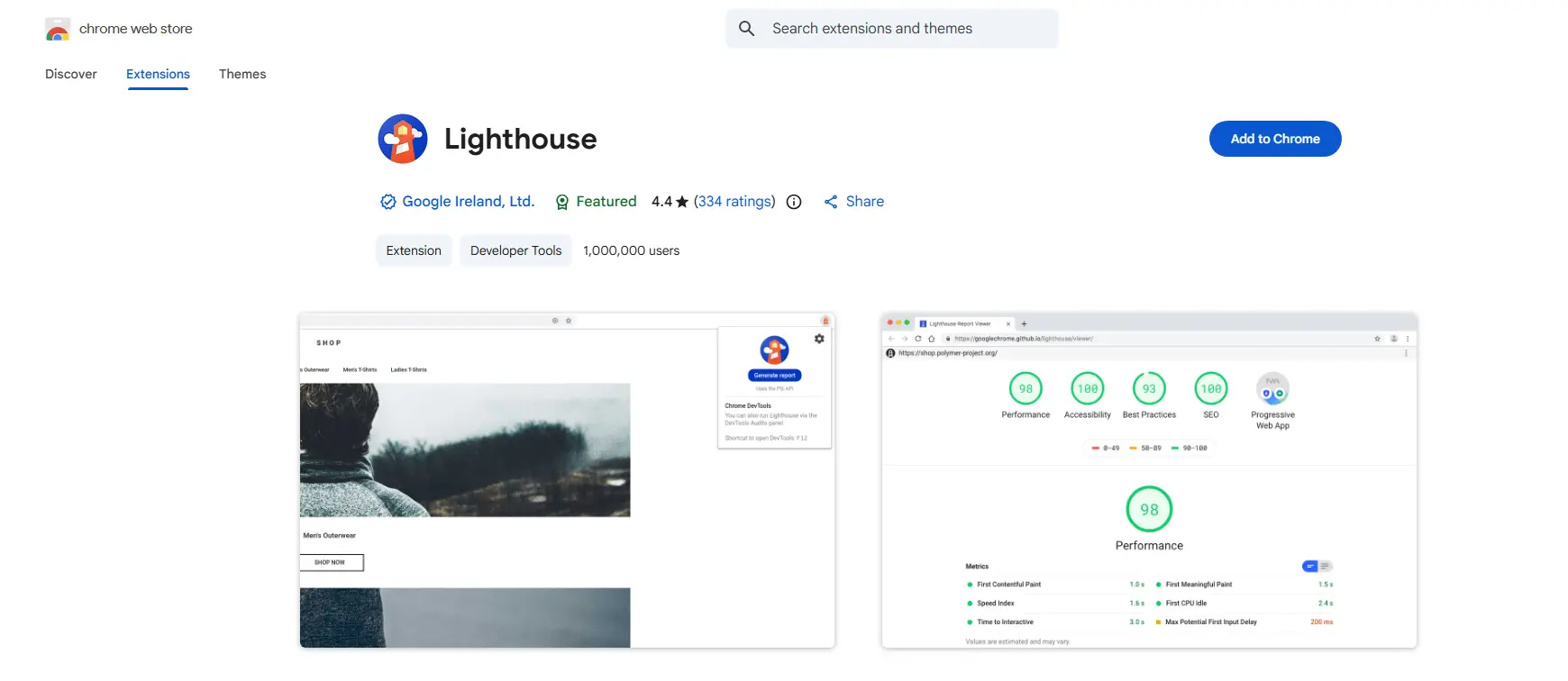
Lighthouse is an open-source auditing tool, built into Chrome DevTools, that scores a page on performance, accessibility, SEO, and best practices. Developers run it after theme or plugin changes to catch regressions early.

Key Features:

  • Automated performance, SEO, and accessibility scoring.
  • Core Web Vitals reporting.
  • Actionable fix recommendations per issue.
  • Command-line and CI integration available.
Benefits
  • Flags performance issues before they reach production.
  • Works without creating an account first.
Drawbacks
  • Scores can fluctuate between runs due to network conditions.
  • Recommendations sometimes need manual interpretation for WordPress-specific fixes.

Pricing: Free

Rating: 4.4/5

18. Web Developer Extension

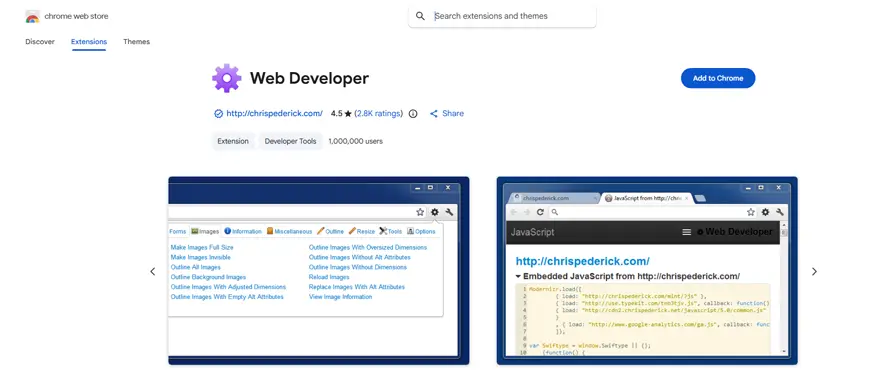
Web Developer is a browser extension that adds a toolbar of shortcuts for inspecting CSS, disabling JavaScript, and testing responsive layouts, lighter than opening full DevTools for quick checks.

Key Features:

  • CSS and HTML inspection shortcuts.
  • Cookie, cache, and form data management.
  • Responsive design testing toolbar.
  • Outline and resize tools for layout checks.
Benefits
  • Faster than opening full DevTools for small checks.
  • Available across Chrome, Firefox, and Edge
Drawbacks
  • Overlaps heavily with features already inside DevTools.
  • Development has slowed compared to more actively updated extensions

Pricing: Free

Rating: 4.5/5

Browser checks only go so far; the next set of tools digs into the server and codebase itself.

Testing and Debugging Tools for WordPress Projects

WordPress development tools that catch problems before they become client emergencies, from uptime to query-level debugging.
19. WP Umbrella

umbrella

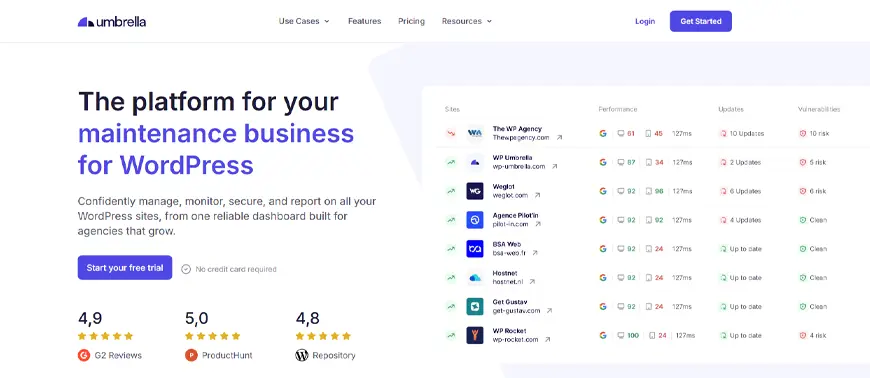
WP Umbrella handles backups, uptime monitoring, update management, and client reporting from a single dashboard. Agencies managing multiple sites use it to replace a patchwork of separate plugins with one connected system.

Key Features:

  • Automated backups and one-click restores.
  • Uptime and performance monitoring.
  • Auto-updates with rollback protection.
  • White-label client reports.
Benefits
  • Centralizes maintenance for agencies running many sites.
  • Rollback protection reduces the risk of update-related downtime.
Drawbacks
  • Per-site pricing adds up for agencies with large portfolios.
  • Some advanced monitoring features are available on higher-tier plans.

Pricing: 14-day trial; $2.19/site/month

Rating: 4.9/5
20. Uptime Robot

Uptime Robot

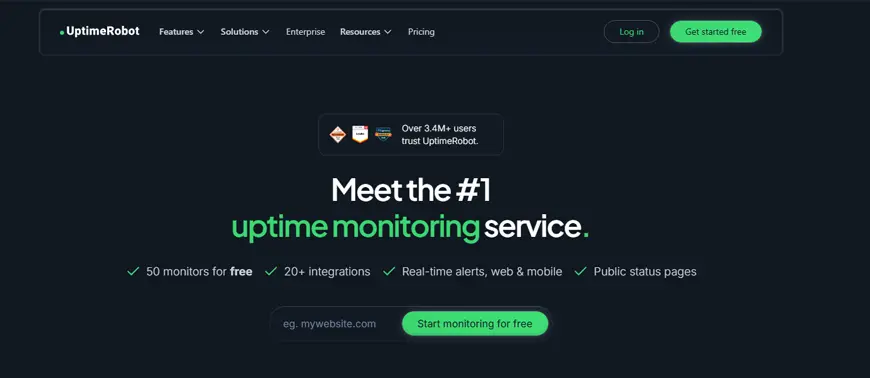
Uptime Robot monitors site availability and alerts the moment it detects downtime, checking as often as every few minutes. For WordPress developers managing client sites, it’s often the first warning system in place before a client even notices something’s wrong.

Key Features:

  • Website, port, and keyword monitoring.
  • SMS, email, and Slack alerting.
  • Public and private status pages.
  • SSL certificate expiry monitoring.
Benefits
  • Takes only minutes to set up the first monitor.
  • Fast alerting reduces downtime response time.
Drawbacks
  • Free plan checks less frequently than paid tiers.
  • Doesn’t diagnose the cause of downtime, only detects it.

Pricing: Free; Solo from $9/month

Rating: 4.7/5
21. Query Monitor

query monitor

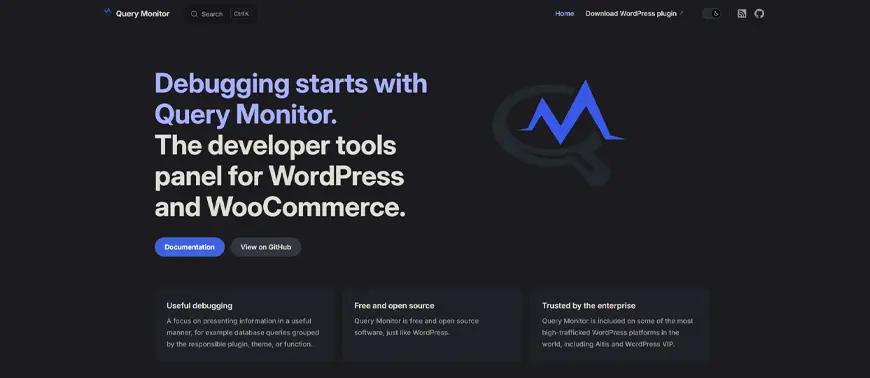
Query Monitor is a free debugging plugin showing database queries, hook calls, PHP errors, and template usage for the page being viewed, with full support for block themes. It’s one of the most commonly recommended debugging tools because it surfaces problems that generic browser tools can’t see, including which specific plugin or theme is causing a conflict.

Key Features:

  • Database query breakdown with execution time.
  • Hook and action tracing.
  • PHP error and deprecation warnings.
  • Template file and conditional tag display.
Benefits
  • Pinpoints slow queries without guessing which plugin caused them.
  • Works directly in wp-admin, with no external tools required.
  • Flags conflicts between specific plugins and themes.
Drawbacks
  • Should never stay active on a live production site.
  • Dense output for WordPress newcomers.

Pricing: Free

Rating: 4.9/5

22. PHP Code Sniffer

phpstorm

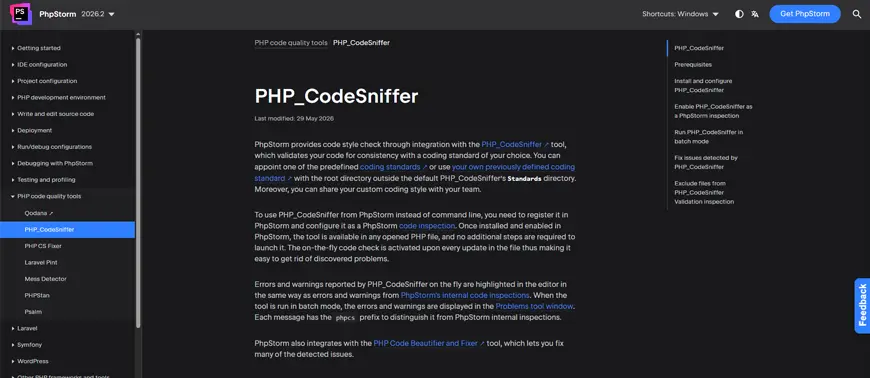
PHP Code Sniffer scans PHP files against defined standards, including the official WordPress Coding Standards ruleset, flagging violations before code review. It keeps contributions consistent when multiple developers touch the same codebase.

Key Features:

  • Support for WordPress Coding Standards ruleset.
  • Command-line and CI/CD integration.
  • Auto-fixing for many common violations.
  • Custom rule configuration.
Benefits
  • Catches formatting and standards issues before manual code review.
  • Integrates cleanly into automated deployment pipelines
Drawbacks
  • Command-line setup can be a barrier for non-technical teams.
  • Doesn’t catch logic errors, only style and standards violations.

Pricing: Free

Rating: NA

Productivity Tools for WordPress Development Teams

These tools manage time, tasks, and operations related to coding work.
23. Toggl Track

Toggl

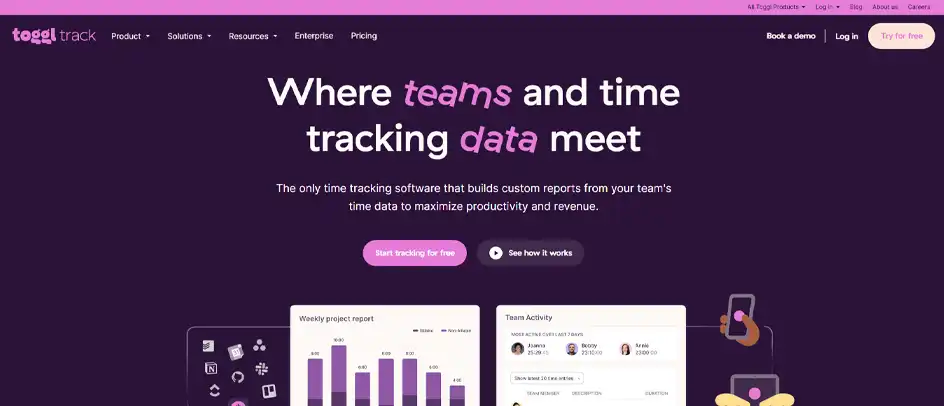
Toggl Track lets developers log hours against projects or clients with one click, without complicated timesheets. Freelancers and agencies use it to keep billing accurate and to see where development hours are actually going.

Key Features:

  • One-click time tracking with project tagging.
  • Detailed reporting by client and project.
  • Browser extension for tracking directly from project tools.
  • Team dashboards for tracking multiple developers.
Benefits
  • Simple enough for developers to use alongside coding work.
  • Reporting makes client billing far more accurate.
Drawbacks
  • Free plan limits reporting depth for larger teams.
  • Requires discipline to start and stop timers consistently.

Pricing: Free tier; from ~$9/user/month

Rating: 4.6/5
24. WP Project Manager

WP Project Manager

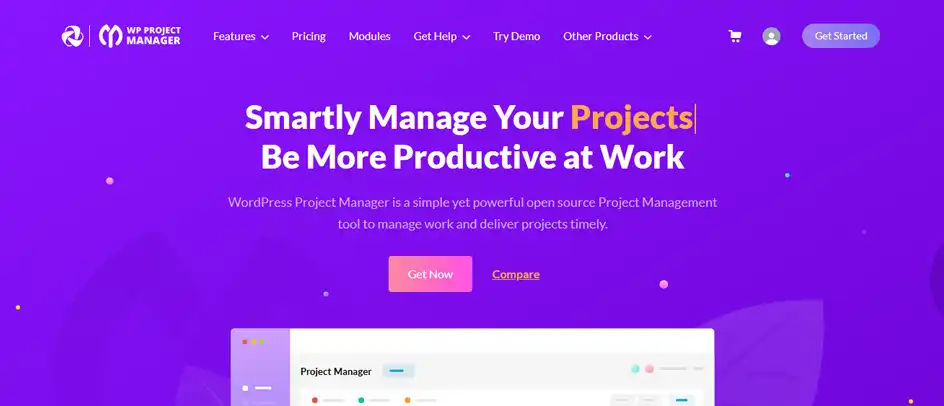
WP Project Manager adds task lists, project boards, and team collaboration inside wp-admin, built for teams already working inside WordPress all day. This WordPress development tool eliminates the need for a separate project management platform.

Key Features:

  • Task lists and Kanban-style project boards.
  • Time tracking tied to specific tasks.
  • File sharing and task comments.
  • Milestone and deadline tracking.
Benefits
  • Keeps project management in the same dashboard as development work.
  • Reduces the need for a separate third-party tool.
Drawbacks
  • Interface feels less polished than dedicated project management apps.
  • Larger teams may outgrow it without upgrading to Pro.

Pricing: Free; Pro from ~$79/year

Rating: 3.8/5

Relevant Read: Teams managing content alongside dev work may also want to explore the best WordPress calendar plugins.
25. WP ERP

wp erp

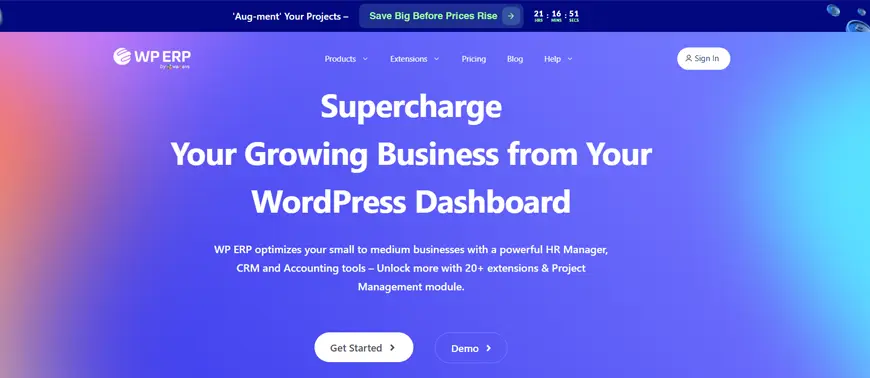
WP ERP integrates HR, CRM, and accounting modules into wp-admin, allowing agencies to manage clients, staff, and finances without separate business software. It’s aimed at small to mid-sized WordPress agencies that want fewer disconnected tools.

Key Features:

  • CRM module for tracking leads and client accounts.
  • HR module for staff records and leave management.
  • Accounting module for invoices and expenses.
  • Modular setup, so only needed features get activated.
Benefits
  • Consolidates business operations inside a tool teams already use.
  • Modular pricing means paying only for the modules actually needed.
Drawbacks
  • Feature depth doesn’t fully match dedicated CRM or accounting software.
  • Adding every module increases costs for growing agencies.

Pricing: Free; Pro from $228/year

Rating: 4.7/5

How to Pick the Best WordPress Development Tools for Your Project

The right choice depends on project stage, team size, and existing workflow:

  • Solo developers: free, lightweight tools like VS Code, XAMPP, and Query Monitor
  • Agencies: scale-friendly tools like InstaWP, WP Umbrella, and PhpStorm
  • Slow deployments: WP-CLI and Docker
  • Unnoticed downtime: Uptime Robot and WP Umbrella
  • Messy design handoffs: Figma, before code gets written

A WordPress developer tools stack stays lean instead of bloated when you pick tools to solve specific problems, not use every tool mentioned above here.

Conclusion

WordPress development in 2026 runs on a wider toolkit than before, and developers can get the most out of it by selecting 5-6 tools. A terminal-first setup with WP-CLI and Docker, or a visual workflow built around Elementor and Figma, covers every stage of building and maintaining a site. 

Start with your biggest bottleneck, then add tools as needed. For agencies that need support in choosing or custom plugin development, our experts are here to help.

FAQs

What are local WordPress development tools?

Tools like XAMPP and Docker that run a full WordPress environment on a developer’s machine, allowing code to be tested before it touches a live server.

What are the benefits of using WordPress development tools?

They reduce manual work, catch bugs earlier, and keep environments consistent between local, staging, and live sites.

Which is better, XAMPP or Local WP?

XAMPP is a manual, general-purpose local stack that needs more setup. Local WP is WordPress-specific and automates configuration, making it faster for WordPress-only workflows.

What is the best IDE for WordPress development?

PhpStorm offers the deepest WordPress-aware features. VS Code covers most needs for free with the right extensions, a more practical pick on a tight budget.

What are the must-have tools for WordPress developers?

WP-CLI, a local server like Docker or XAMPP, a code editor like VS Code, and a debugging plugin like Query Monitor cover the core of any WordPress development tools setup.